Everframe Studios

Everframe + FILL

Studio desk

Your websites, work & inboxes.

Daily tools 01

FILL · 40 slots

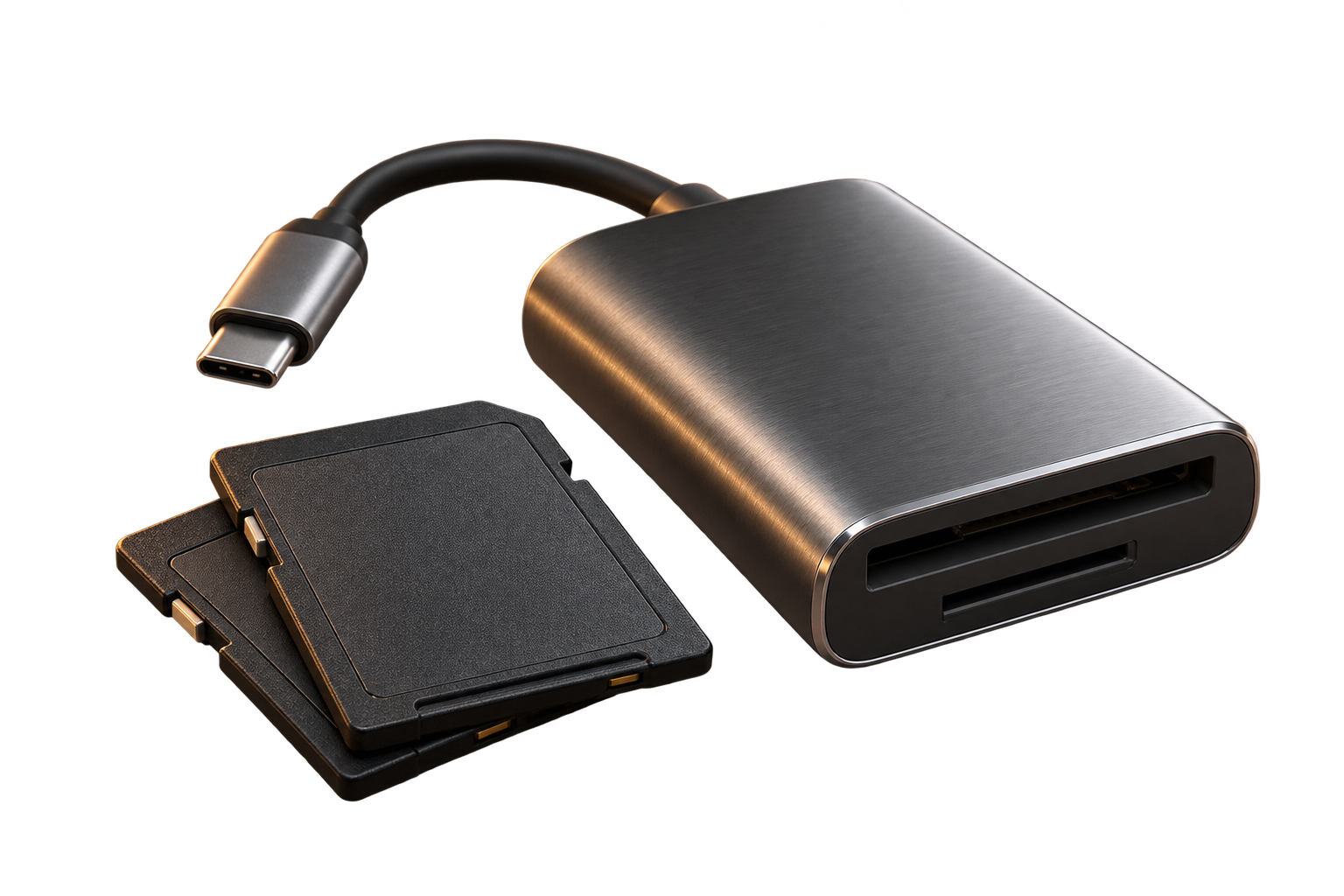
SD CARD
CONTROL

Card labels, models & backup status.

Open card case
HoneyBook

Clients, projects, contracts & payments.

Open dashboard

Your websites 02

Everframe Studios
everframestudios.comOpen
Photo & Video

fillphotoandvideo.comOpen
Links & resources

FILL Links

links.fillphotoandvideo.comOpen

Email 03

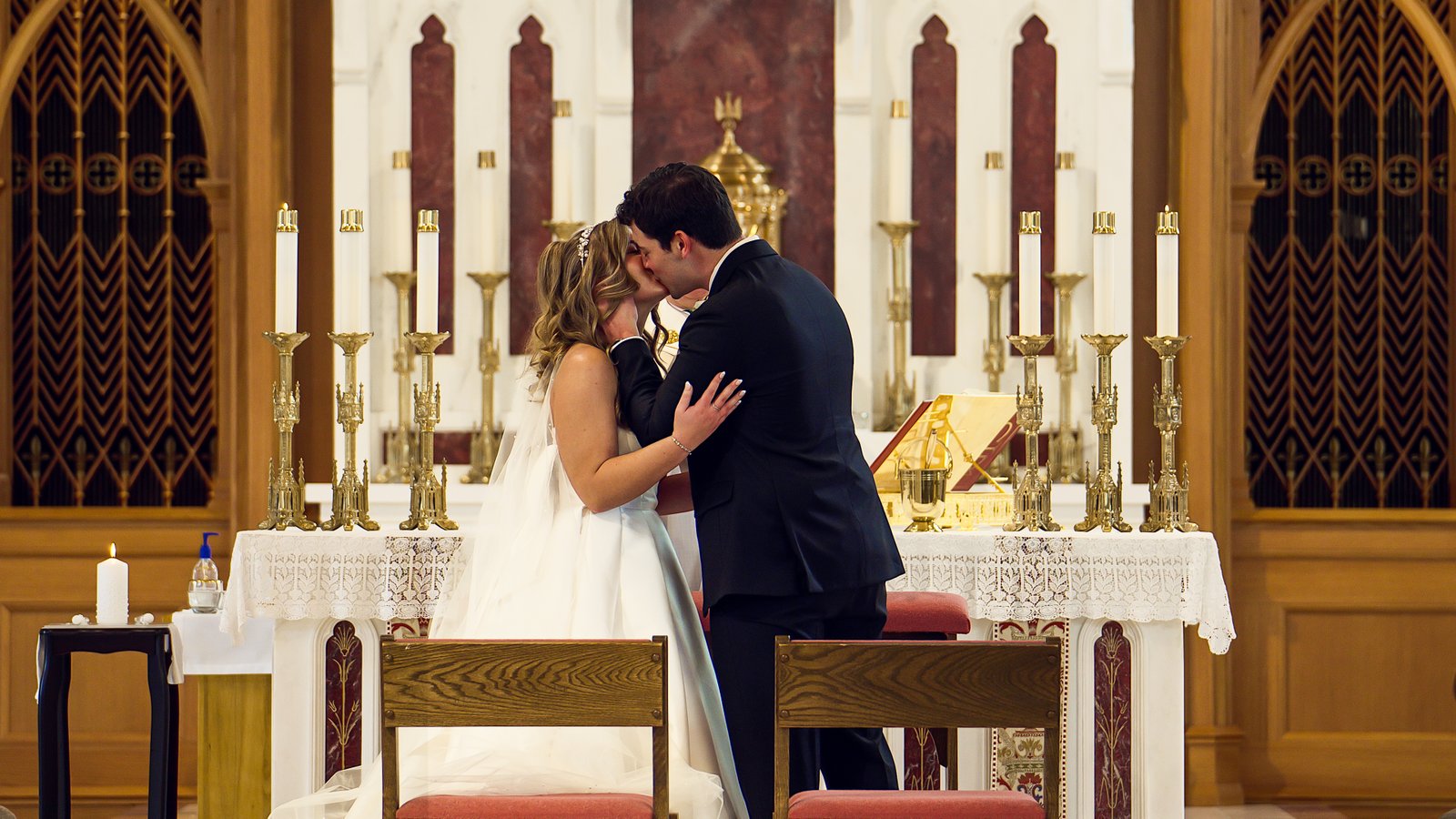
Casey and Matthew kissing during their wedding ceremony, surrounded by candles and gold church details
YOUR PHOTOGRAPHY · EVERFRAME STUDIOS

Use your usual Chrome profile for your existing sign-ins. Each service opens in its own tab.

Your sign-ins, made simpler

1. Use your usual Chrome profile

Open this portal in the same Chrome profile where you use HoneyBook and email. Sign-in sessions belong to that browser profile; a private/incognito window has a separate session.

2. HoneyBook opens your dashboard

The shortcut goes straight to HoneyBook Home. An active session can take you there without another login. If HoneyBook asks you to sign in again, complete its normal login.

3. Add both email accounts in Hostinger

  1. Open Webmail and sign in to your Everframe email.
  2. Open the profile menu at the top right and choose Sign in to a mailbox.
  3. Sign in to your FILL email.
  4. Use that profile menu to switch between your signed-in accounts.

Both portal buttons open Webmail; they don’t automatically select a mailbox. Hostinger’s account-switching guide

HoneyBook and Hostinger decide how long you stay signed in. This portal uses their existing sessions; it doesn’t store passwords or extend expired sessions.